Google Stitch MCP + Claude Code — Generate Production UI from Text Prompts
Complete walkthrough: Google Cloud project setup, service account config, MCP server connection, and real UI generation examples with screenshots.
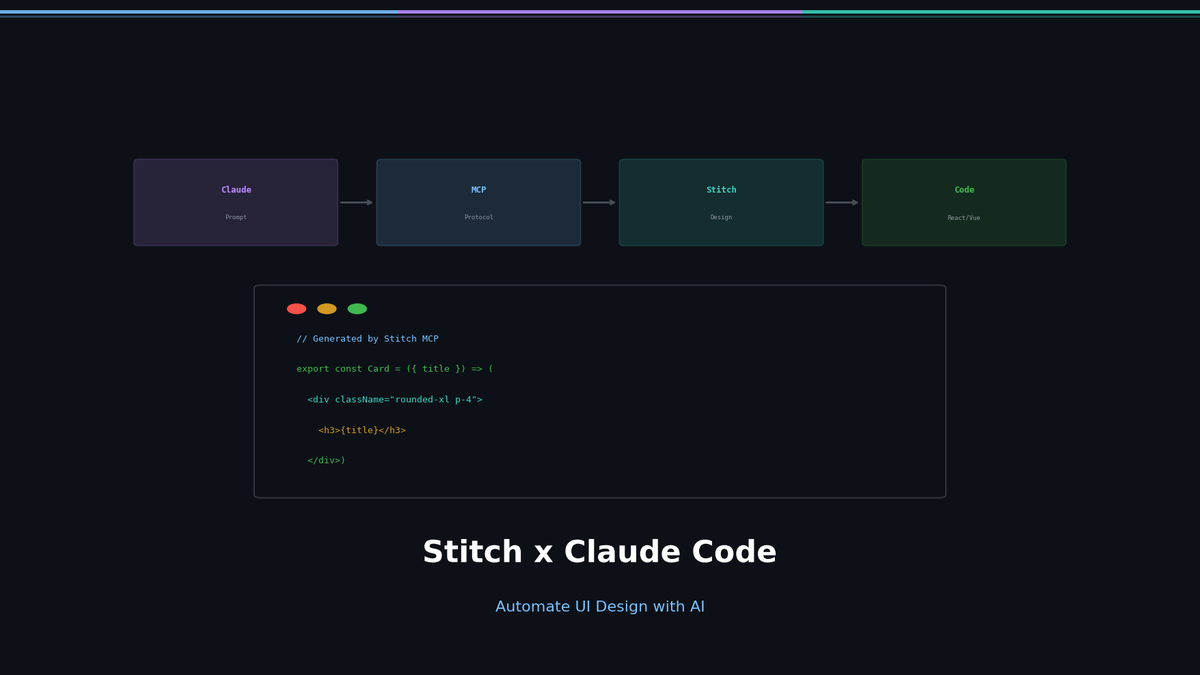
Integrating Google Stitch MCP with Claude Code: Automate UI Design with AI
Learn how to connect Google Stitch with Claude Code via MCP to generate professional-grade UI designs from text prompts.
Introduction
Google recently launched Stitch, an AI tool that generates high-quality UI designs from text prompts. In this guide, we'll walk through the complete process of integrating Stitch with Claude Code (Anthropic's CLI tool) using the Model Context Protocol (MCP).
What You'll Learn
- Setting up a Google Cloud project
- Creating a service account and configuring permissions
- Configuring the Stitch MCP server
- Real-world UI generation examples
Prerequisites
- Google account
- Node.js 18+ installed
- Claude Code installed (or any MCP-compatible client)
gcloudCLI installed
Note: This guide uses the stitch-mcp package from this repository. Google's official method uses Remote MCP, but requires manually refreshing the Access Token every hour. The approach in this guide uses a Service Account JSON for automatic token renewal, making it more convenient.
Step 1: Create a Google Cloud Project
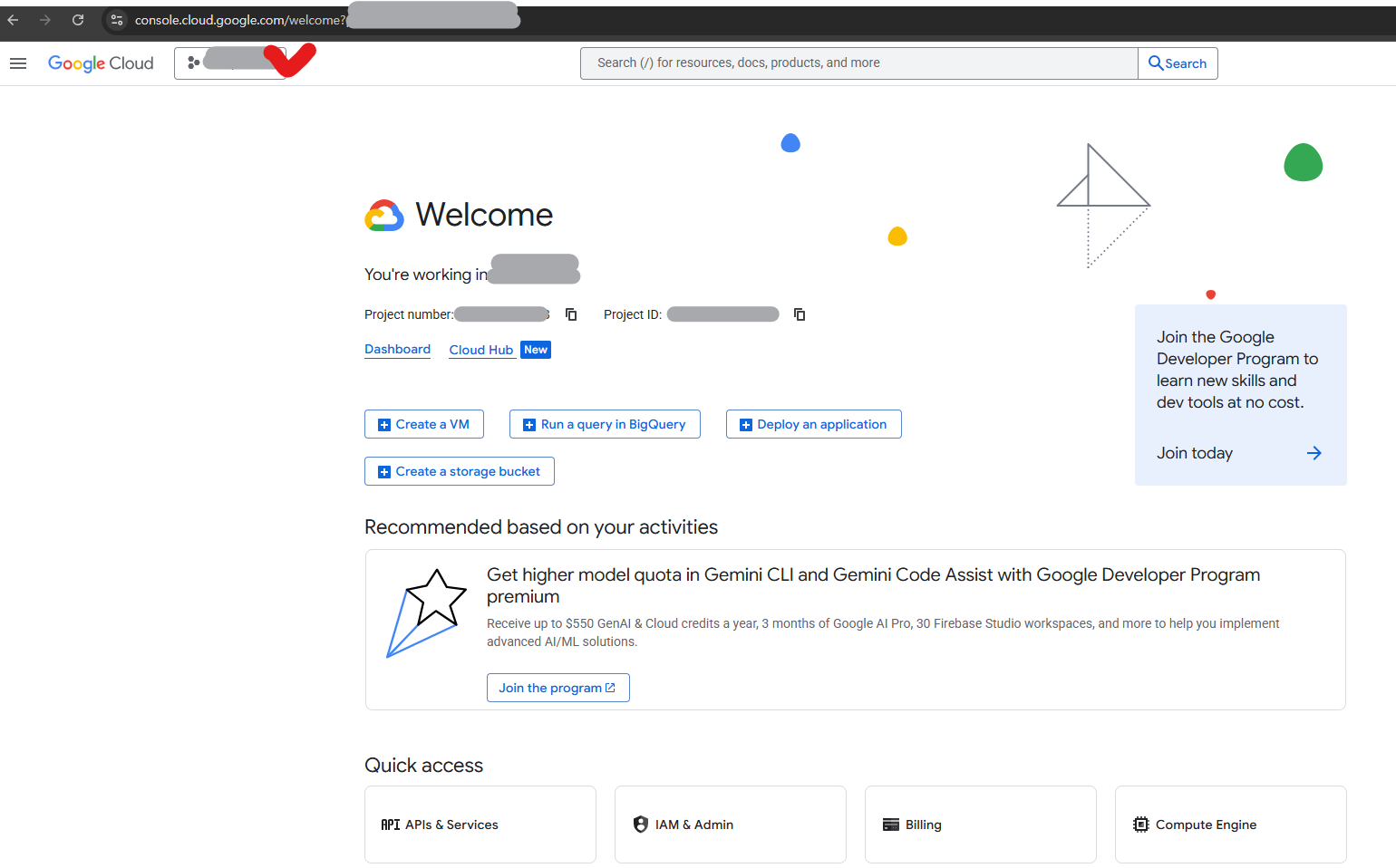
1.1 Access Google Cloud Console
Navigate to Google Cloud Console.
1.2 Create a New Project
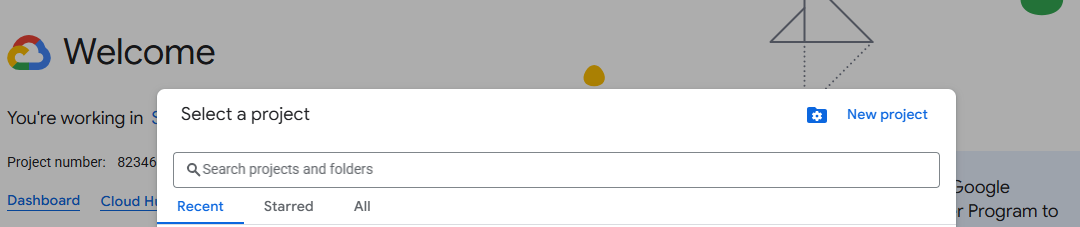
- Click the project selector dropdown at the top
- Click "New Project" button
- Enter a project name (e.g.,
my-stitch-project) - Click "Create"
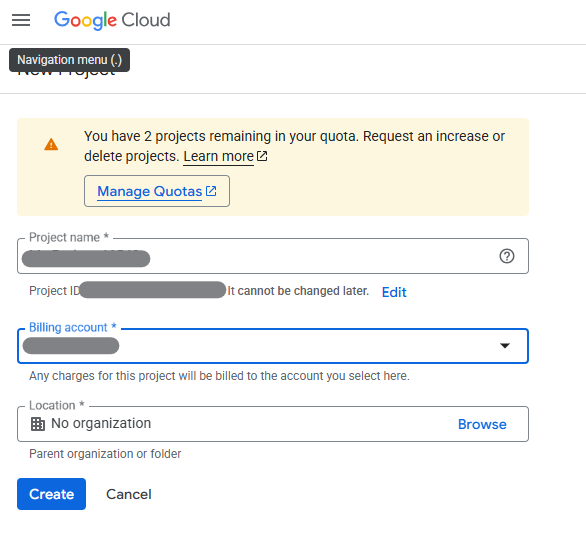
Once created, your project will be assigned a Project ID. Note this down—you'll need it later.
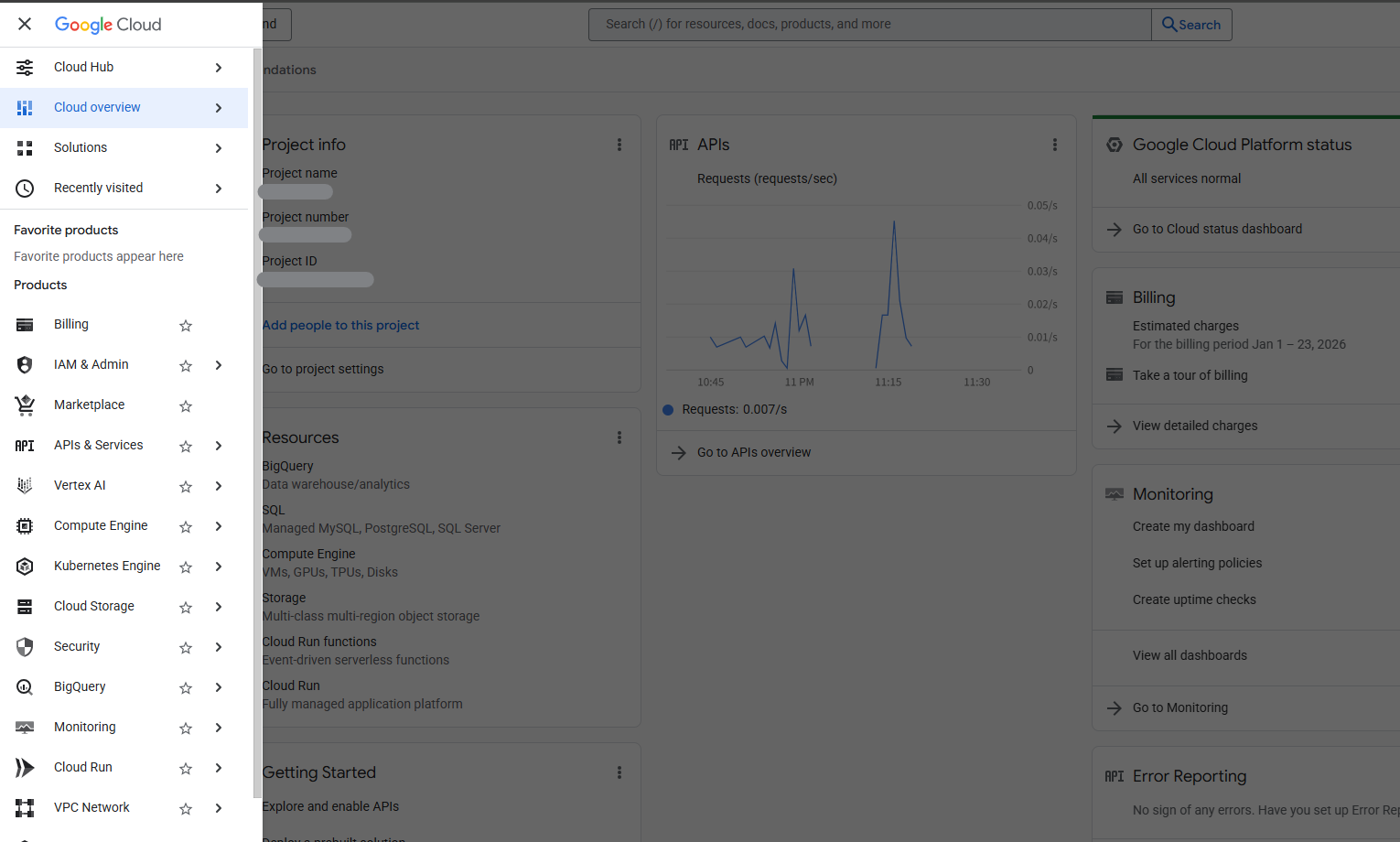
Step 2: Enable the Stitch API
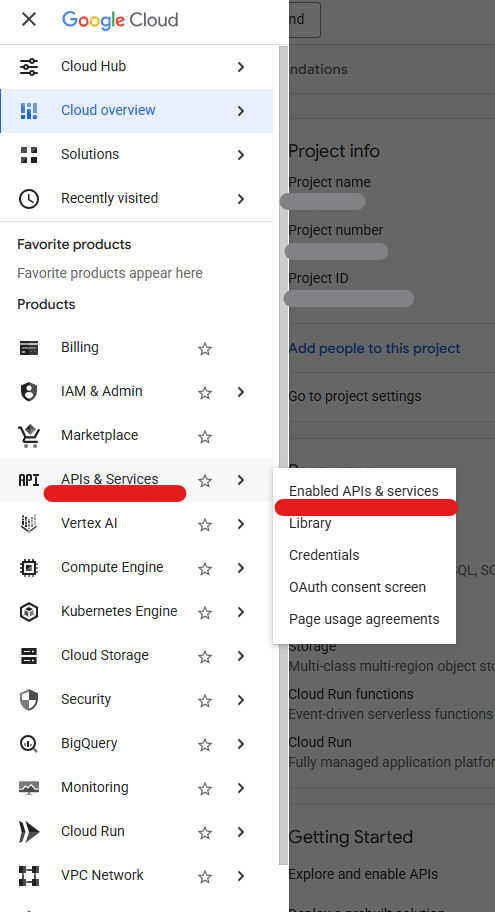
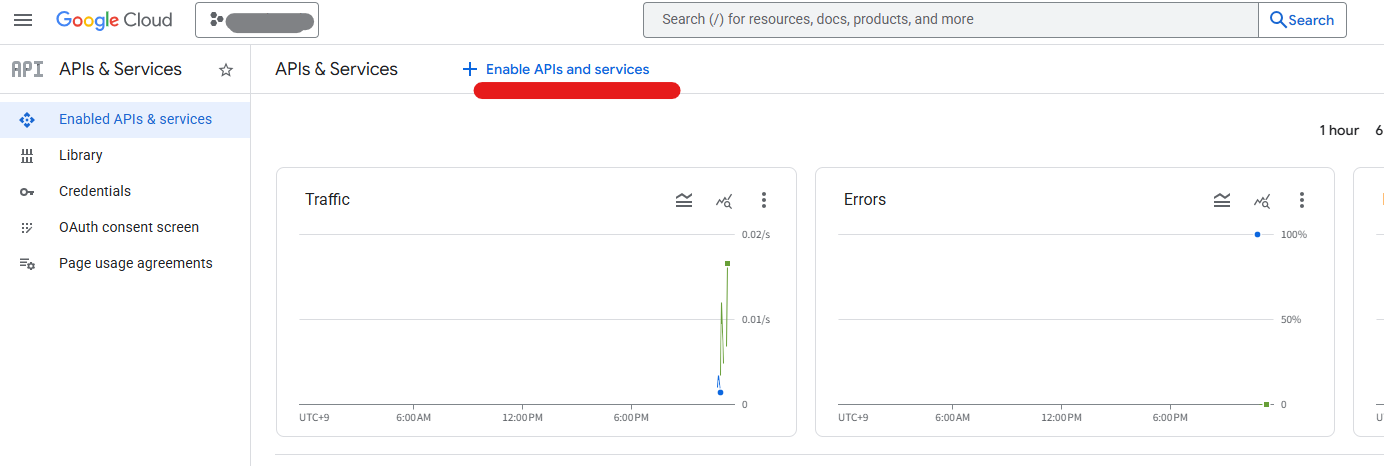
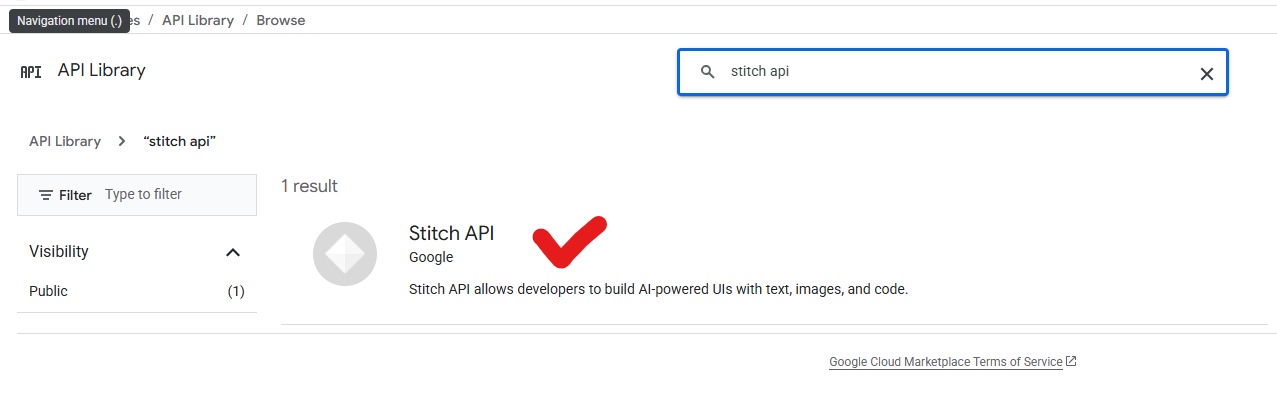
2.1 Find Stitch API in the Library
- In the left menu, click "APIs & Services" > "Library"
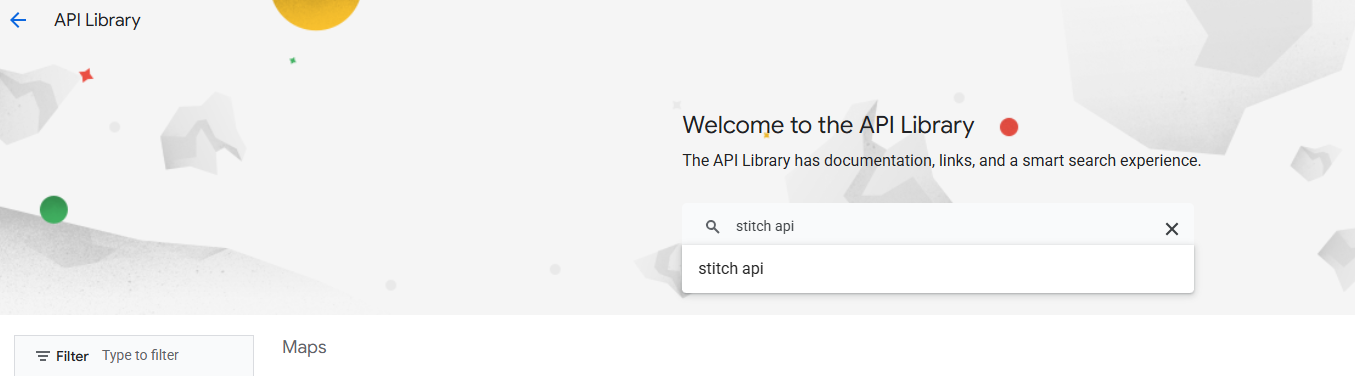
- Search for "Stitch API"
- Click on "Stitch API"
2.2 Enable the API
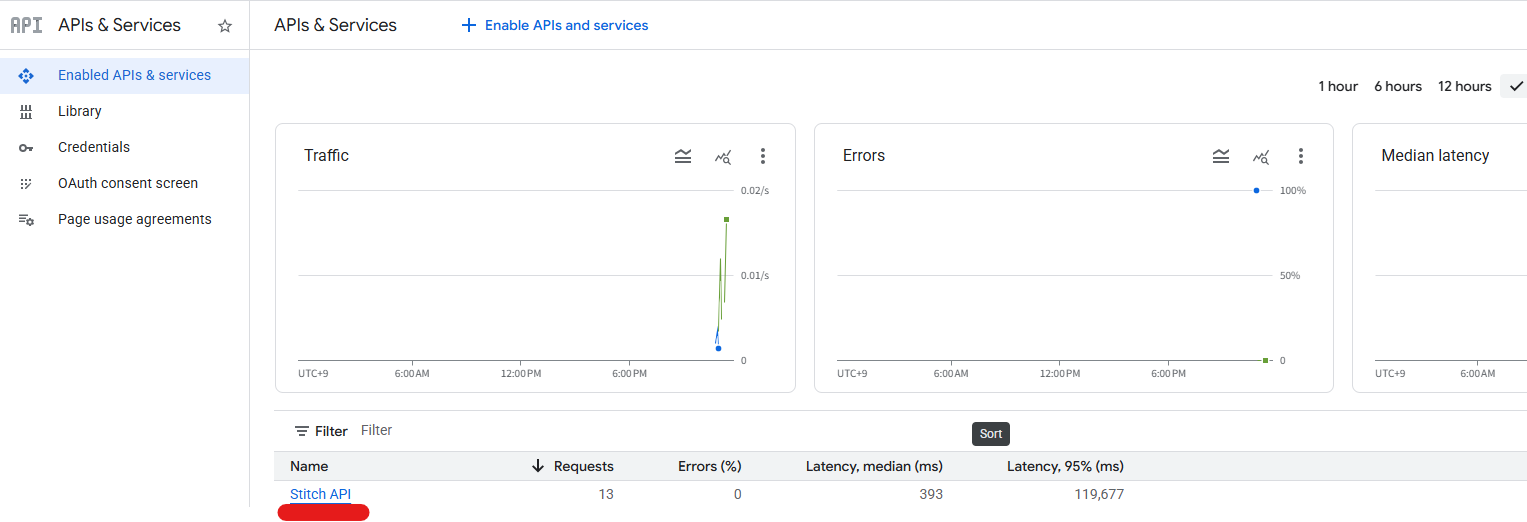
- Click the "Enable" button
- Wait for activation to complete—you should see "API Enabled" status
Step 3: Create a Service Account
A service account is a special account used by applications to authenticate with Google Cloud APIs.
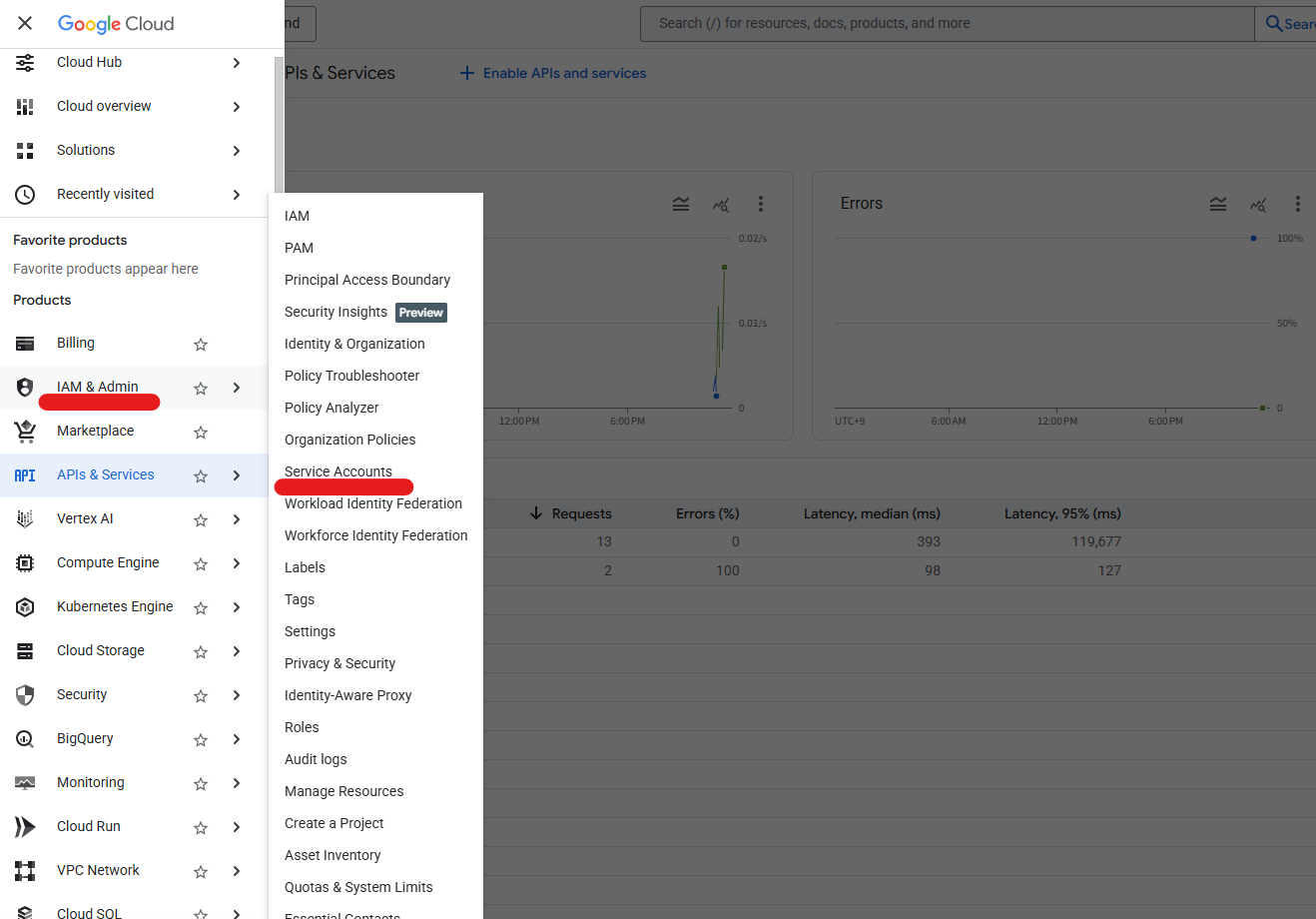
3.1 Navigate to Service Accounts
- In the left menu, click "IAM & Admin" > "Service Accounts"
- Click "+ Create Service Account" at the top

3.2 Enter Service Account Details
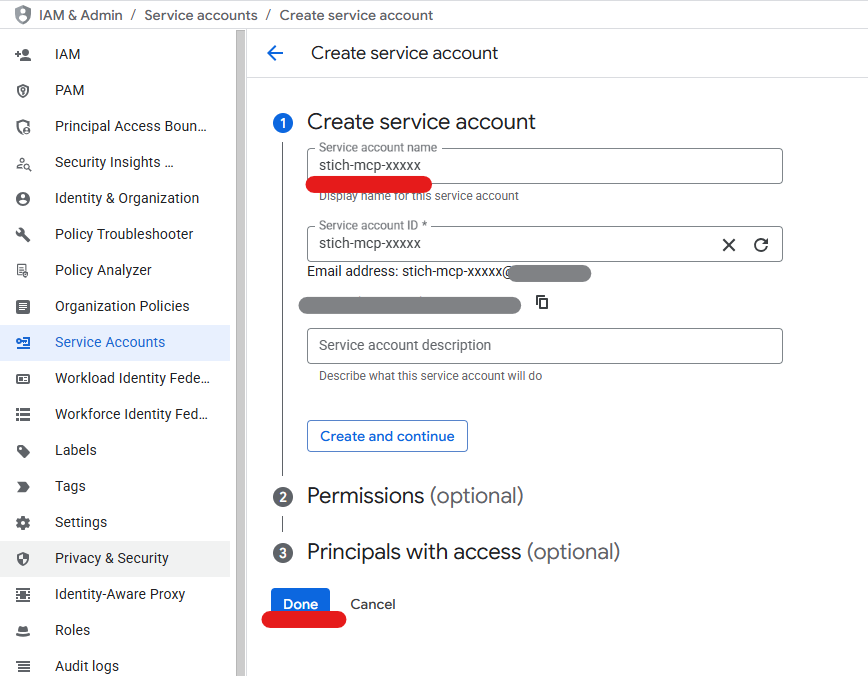
- Service account name:
stitch-mcp(or any name you prefer) - Service account ID: Auto-generated
- Description: "Service account for Stitch MCP server" (optional)
- Click "Create and Continue"
3.3 Grant Roles (Optional)
You can skip this step for now. Click "Done".
Step 4: Generate Service Account Key (JSON)
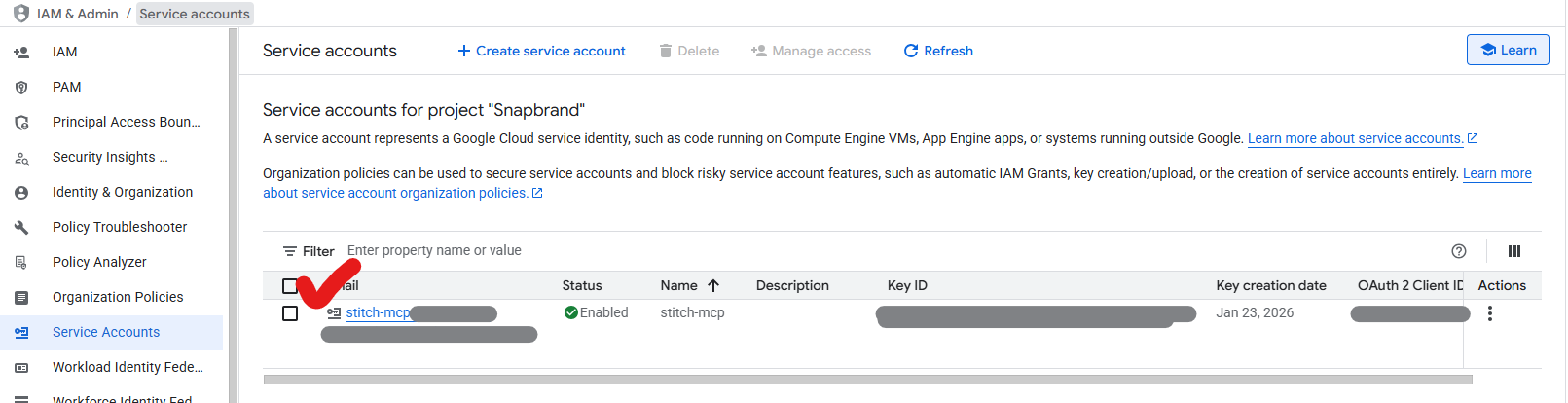
4.1 Access Key Management
- Click on the service account email you just created
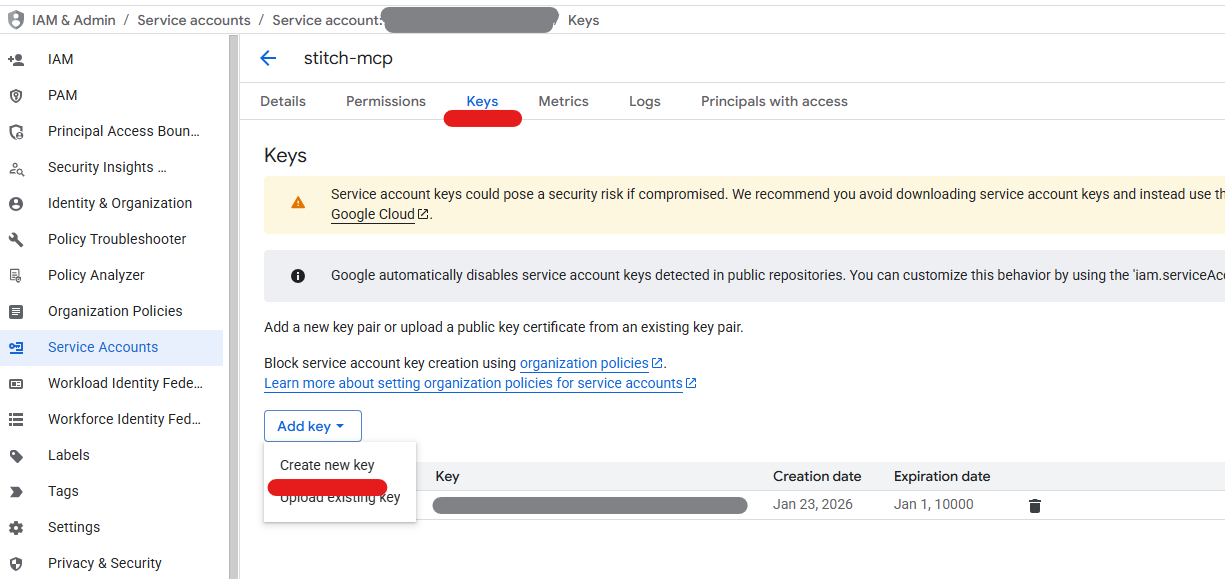
- Go to the "Keys" tab
- Click "Add Key" > "Create new key"
4.2 Download JSON Key
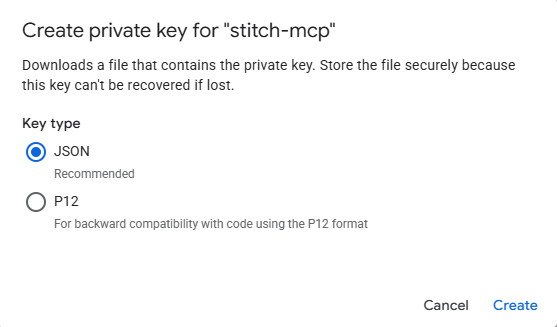
- Select "JSON" as the key type
- Click "Create"
- The JSON file will download automatically
⚠️ Important: This JSON file contains sensitive credentials. Never commit it to a public repository!
Save the downloaded file as service-account.json in your project folder.
Step 5: Enable MCP via gcloud CLI
In addition to the standard API enablement, you need to enable the MCP endpoint separately.
5.1 Login to gcloud
Run the following command in your terminal:
gcloud auth loginA browser window will open—sign in with your Google account.
5.2 Update gcloud
Ensure gcloud is up to date to access MCP commands:
gcloud components update5.3 Enable MCP Endpoint
gcloud beta services mcp enable stitch.googleapis.com --project=YOUR_PROJECT_IDReplace YOUR_PROJECT_ID with your actual project ID.
5.4 Grant Permissions to Service Account
Allow the service account to use the API:
gcloud projects add-iam-policy-binding YOUR_PROJECT_ID \
  --member="serviceAccount:stitch-mcp@YOUR_PROJECT_ID.iam.gserviceaccount.com" \
  --role="roles/serviceusage.serviceUsageConsumer"
Step 6: Configure MCP Settings
6.1 Create .mcp.json File
Create a .mcp.json file in your project root:
{
  "mcpServers": {
    "stitch": {
      "command": "npx",
      "args": ["-y", "stitch-mcp"],
      "env": {
        "GOOGLE_CLOUD_PROJECT": "YOUR_PROJECT_ID",
        "GOOGLE_APPLICATION_CREDENTIALS": "./service-account.json"
      }
    }
  }
}
6.2 Add Sensitive Files to .gitignore
# Google Cloud credentials
service-account.json
Step 7: Test in Claude Code
7.1 Restart Claude Code
Restart Claude Code to load the MCP server.
7.2 Test the Connection
In Claude Code, try:
List my Stitch projectsIf you get an empty result {}, it works! (You just don't have any Stitch projects yet)
Step 8: Generate Your First UI
8.1 Create a Stitch Project
Create a Stitch project called "My App UI"8.2 Generate a Screen
Generate a dashboard UI with:
- Dark sidebar navigation
- 3 stats cards
- Quick Actions section
- Primary color: orange (#ff6933)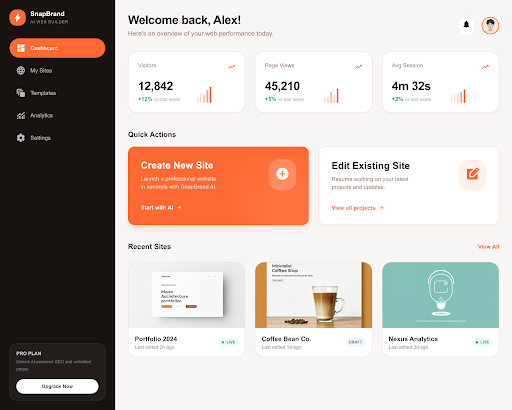
8.3 Fetch the Code
You can fetch the generated HTML/CSS code and convert it to React components for your project.
Available Stitch Tools
| Tool | Description |
|---|---|
create_project | Create a new Stitch project |
list_projects | List all projects |
get_project | Get project details |
list_screens | List screens in a project |
get_screen | Get screen details |
generate_screen_from_text | Generate screen from prompt |
fetch_screen_code | Get screen HTML/code |
fetch_screen_image | Get screen preview image |
Troubleshooting
"Stitch API has not been used in project" Error
The MCP endpoint is not enabled:
gcloud beta services mcp enable stitch.googleapis.com --project=YOUR_PROJECT_ID"Permission denied" Error
The service account lacks permissions:
gcloud projects add-iam-policy-binding YOUR_PROJECT_ID \
  --member="serviceAccount:YOUR_SERVICE_ACCOUNT_EMAIL" \
  --role="roles/serviceusage.serviceUsageConsumer"
"mcp" Command Not Found in gcloud
Update gcloud to the latest version:
gcloud components updateConclusion
By combining Google Stitch with MCP, you can generate professional-quality UI designs from simple text prompts. When used with Claude Code, you can seamlessly convert generated designs into React components and apply them directly to your project—significantly boosting development productivity.
Resources
Tags: Google Stitch, MCP, Claude Code, AI, UI Design, Automation
Subscribe to Newsletter
Related Posts
Google Stitch MCP API: Generate UI Designs via AI Agents
Google Labs Stitch now supports MCP servers, allowing AI tools like Claude Code and Cursor to generate UI designs through API calls. Note: Some details in this article are from unofficial sources and may change.
Google Stitch MCP Setup Guide — Claude Code, Cursor, Gemini CLI (2026)
Step-by-step Stitch MCP setup for every AI coding platform. Auto-install, manual config, UI generation examples, and troubleshooting — everything the official docs skip.
Claude Code in Practice (4): Building MCP Servers
What if Claude could read Jira tickets, send Slack messages, and query your database? Learn how to extend Claude's capabilities with MCP servers.